NSX 3 Basic Install
I’ll walk through my first install of NSX 3.0 in my home lab. This will provide basic connectivity and then in future posts we’ll look at other features.
This guide will use some prepositioned items created during the NSX install. In a future post we’ll talk through the pros / cons of using these items.
Verify DNS
First step will be to ensure we have a DNS entry for the host, both forward and reverse. In my deployment, the NSX manager will be called L20-NSX.lab20.local
Deploy OVA
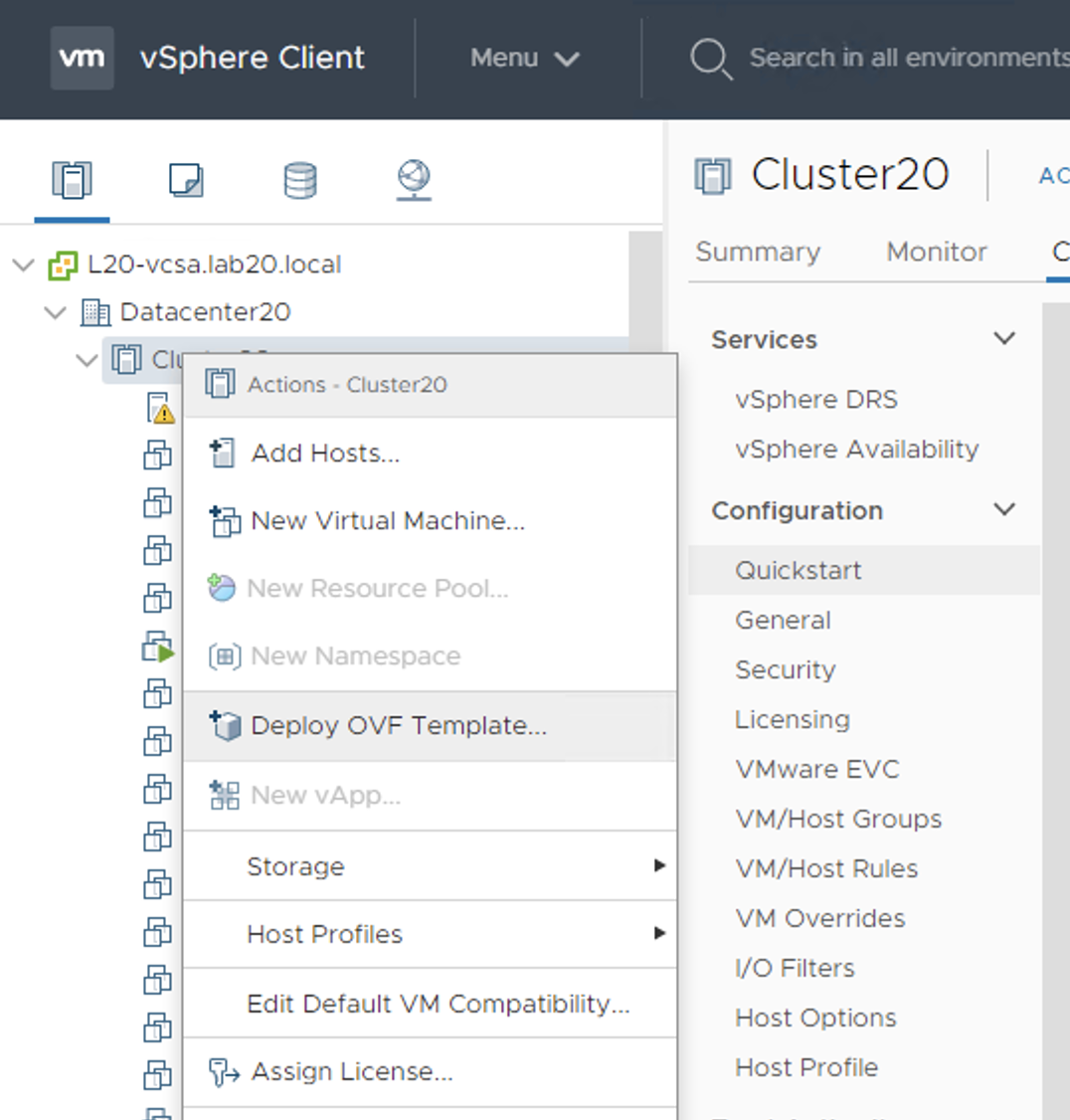
Next we’ll deploy the OVA file to vCenter. This OVA is the latest version of NSX from the download site. This section will be pretty straight forward.
Customize OVA settings
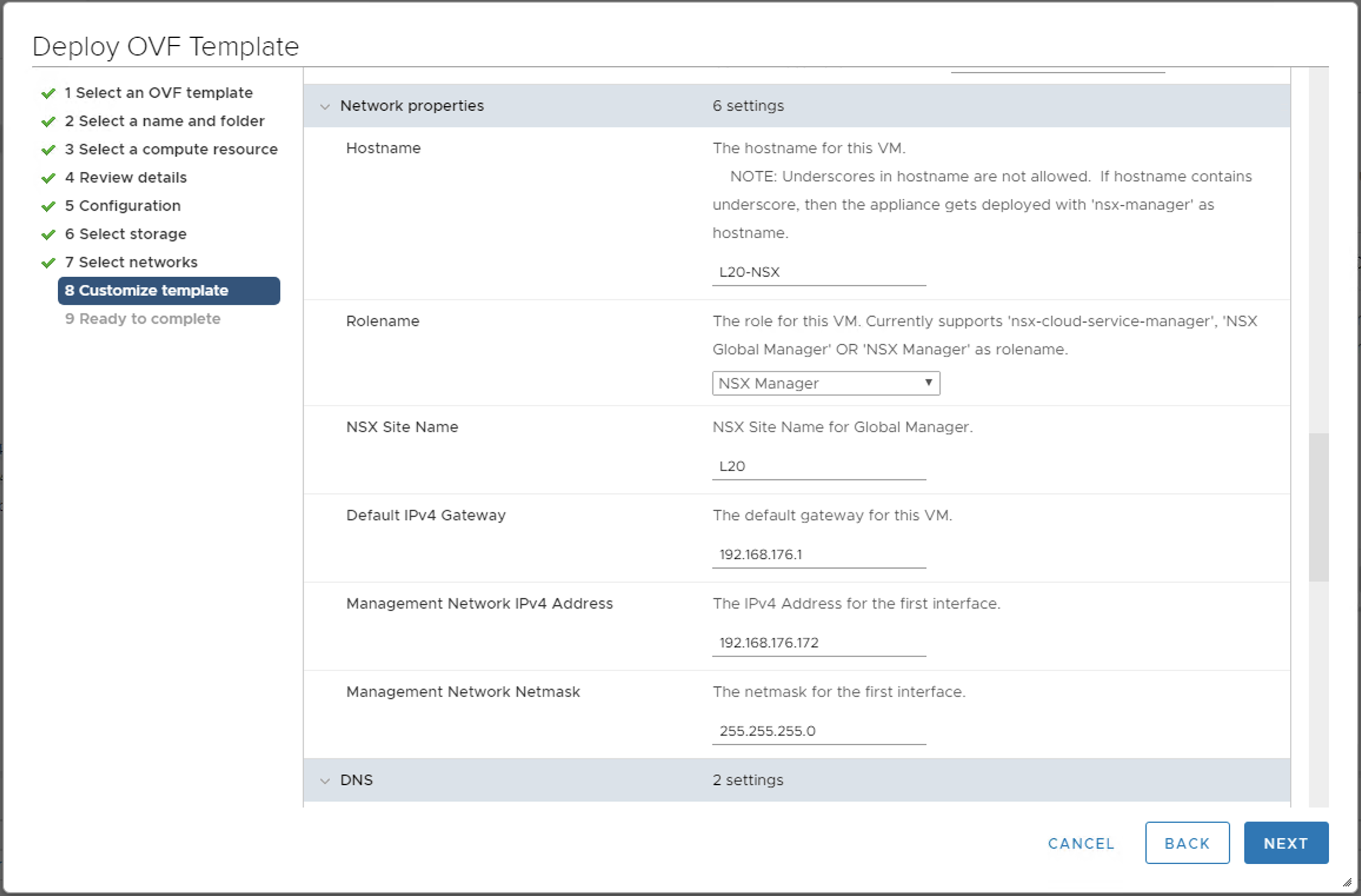
I’m not going to highlight every screen during this wizard as it is straight forward. Here is one screenshot regarding the Customize Template section of the OVA deployment wizard we’ll need to fill in passwords for the System Root User, CLI “admin” user and CLI “audit” user. Next we’ll fill in the IP address info and hostname settings.
Verify the OVA is deploying through vCenter
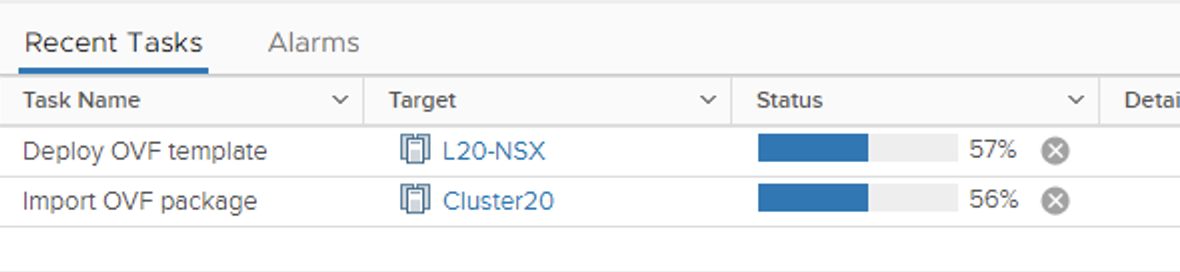
If we look at vCenter we should see the OVA deploying in recent tasks.
Power on the new NSX Manager
Through vCenter power on the NSX Manager. Once it is up, point a browser to the FQDN of the appliance. In this example it is https://L20-nsx.lab20.local. The username to login to this interface is admin with the password you set during the OVA deployment.
Initial screen and Licensing
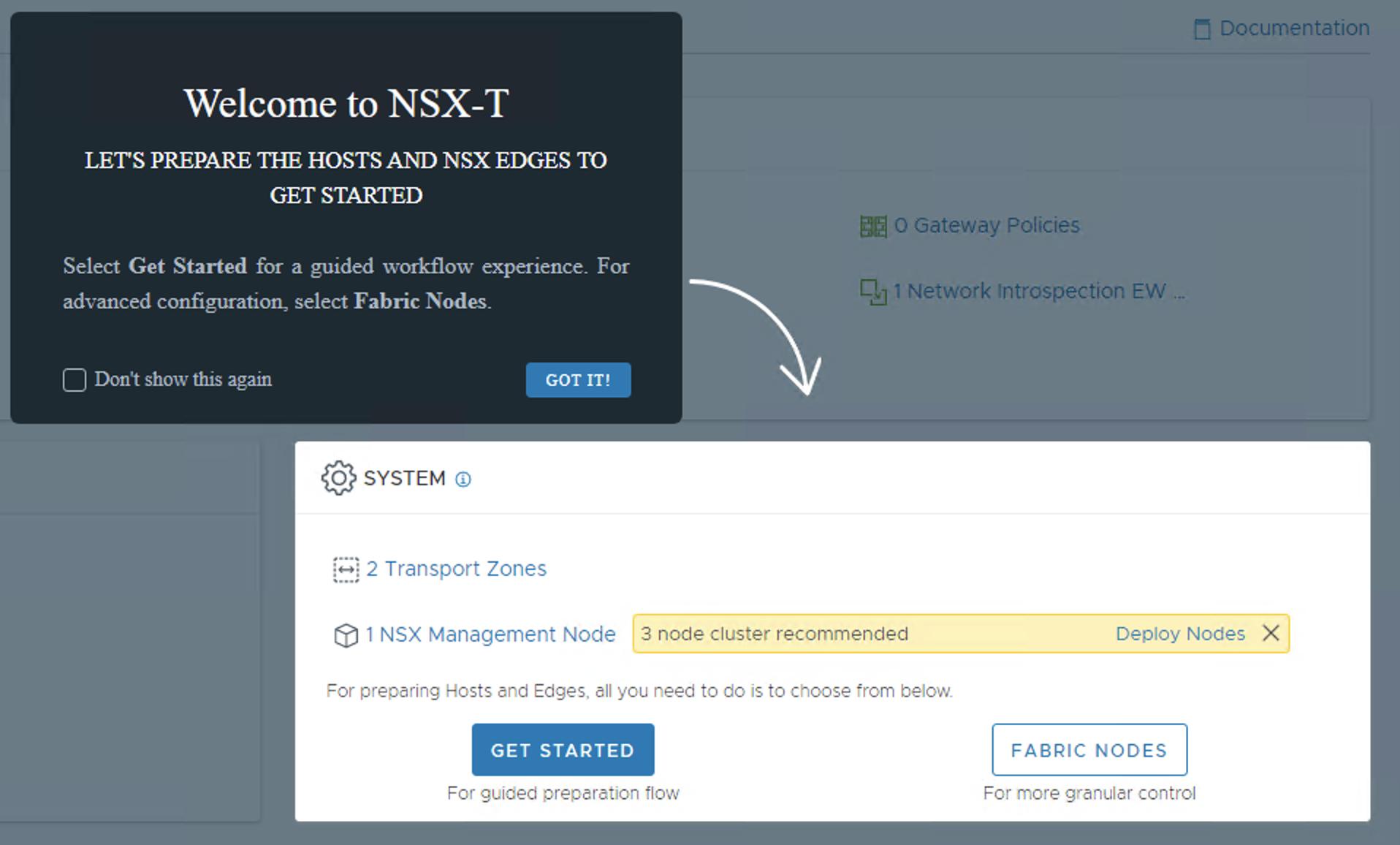
When we first log in we see a few messages. This includes accepting the EULA when you are ready and deciding if you want to participate in the feedback system. The below screenshot is what you’ll see after those. We have the option of going through a wizard. For this install we’ll do the steps ourselves. Click past this or click on Fabric nodes.
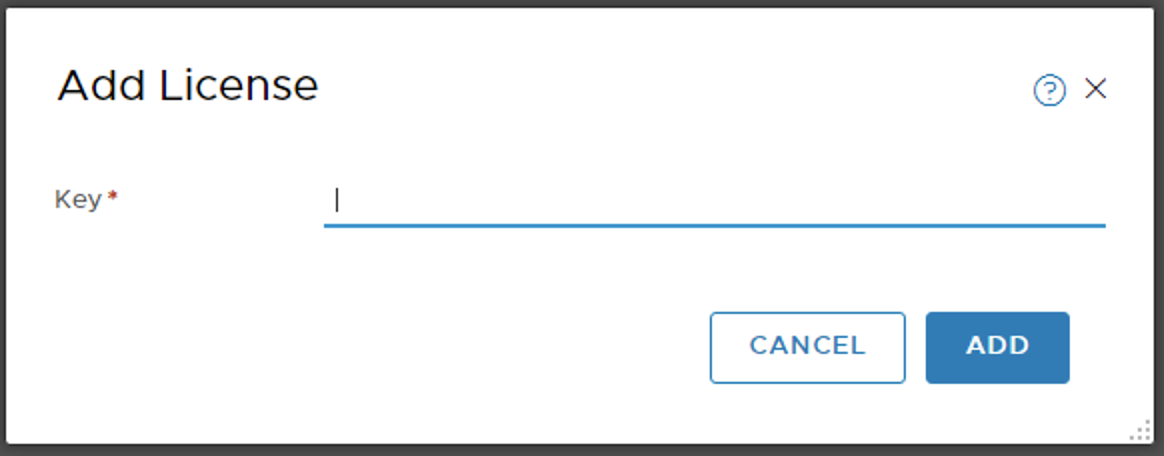
Updating License Key
First we’ll click on the licenses link at the top of the screen and add our license key. If you don’t have the keys readily available, you can skip this for now. Some features will be limited until a key is added. After you add a valid key, you can close out of the warning message at the top of the screen.
Computer Manager
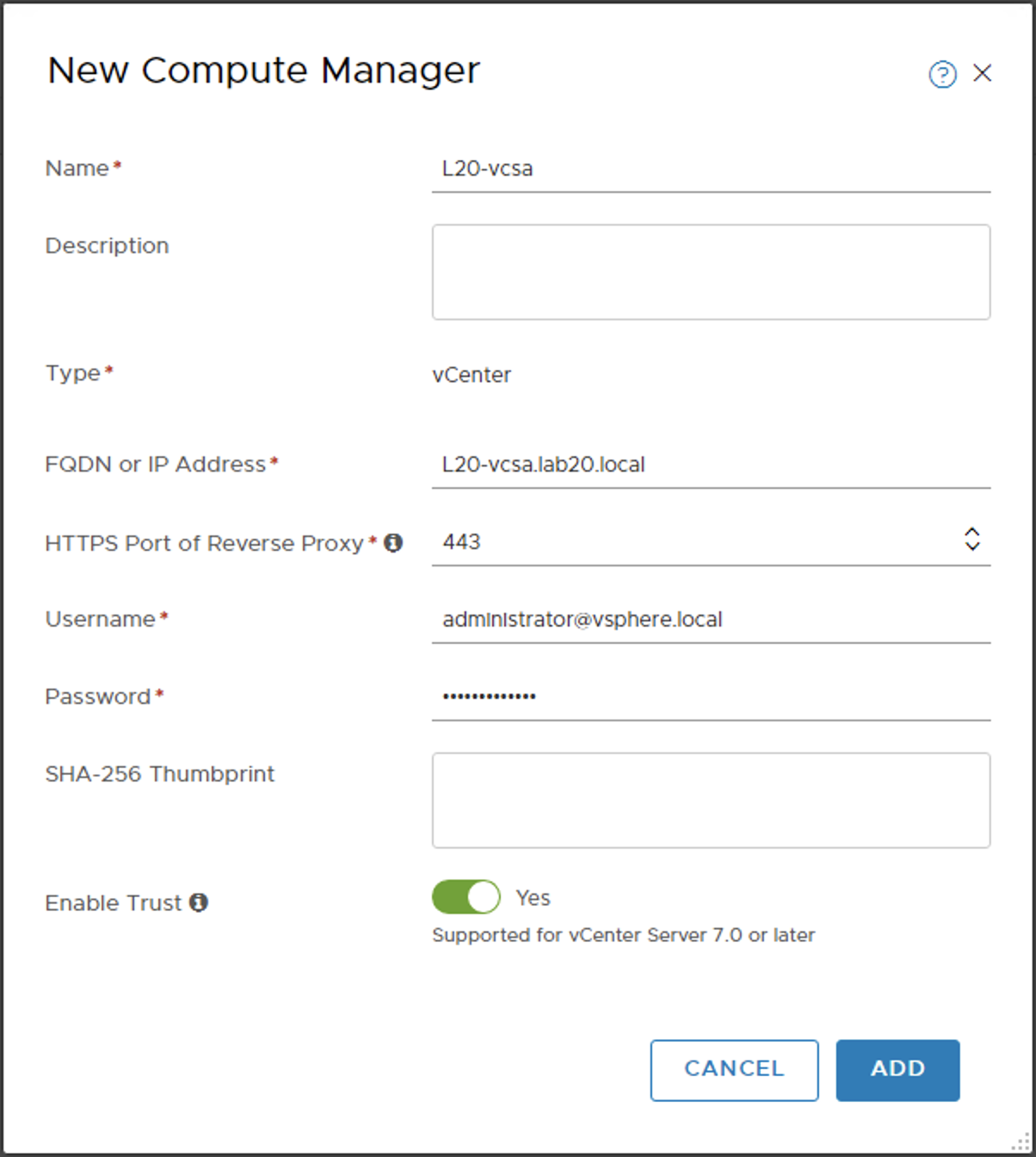
After adding the license, navigate to System at the top and then Fabric | Compute Managers. Click Add and in this setup, the Computer Manager will be our vCenter server, L20-vcsa.
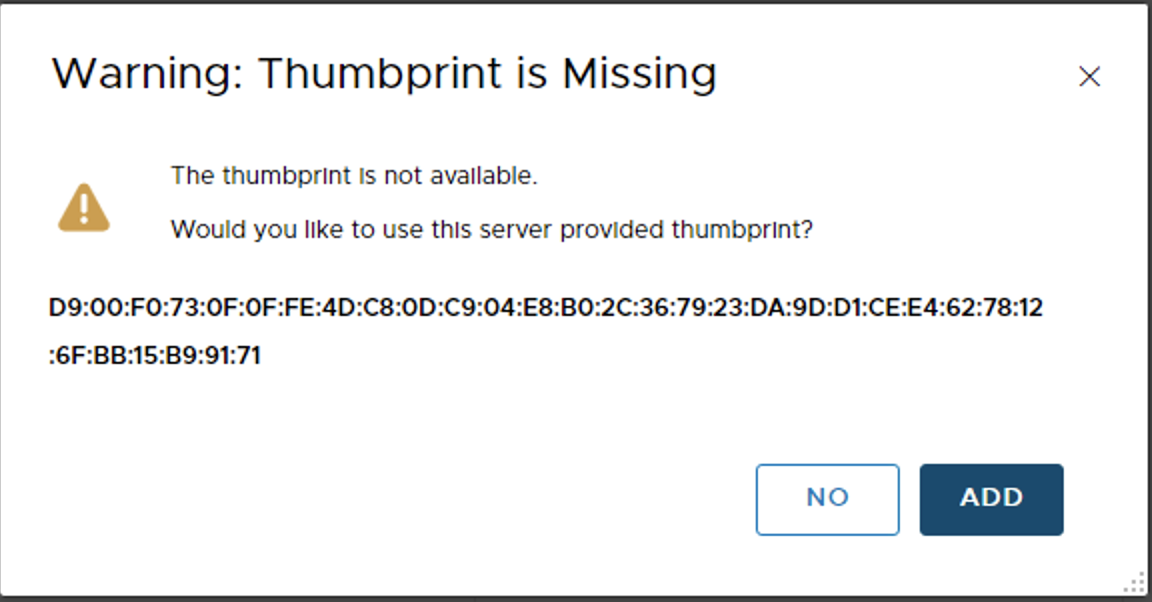
If you are using a self signed key, accept the warning.
Create an IP Address Pool
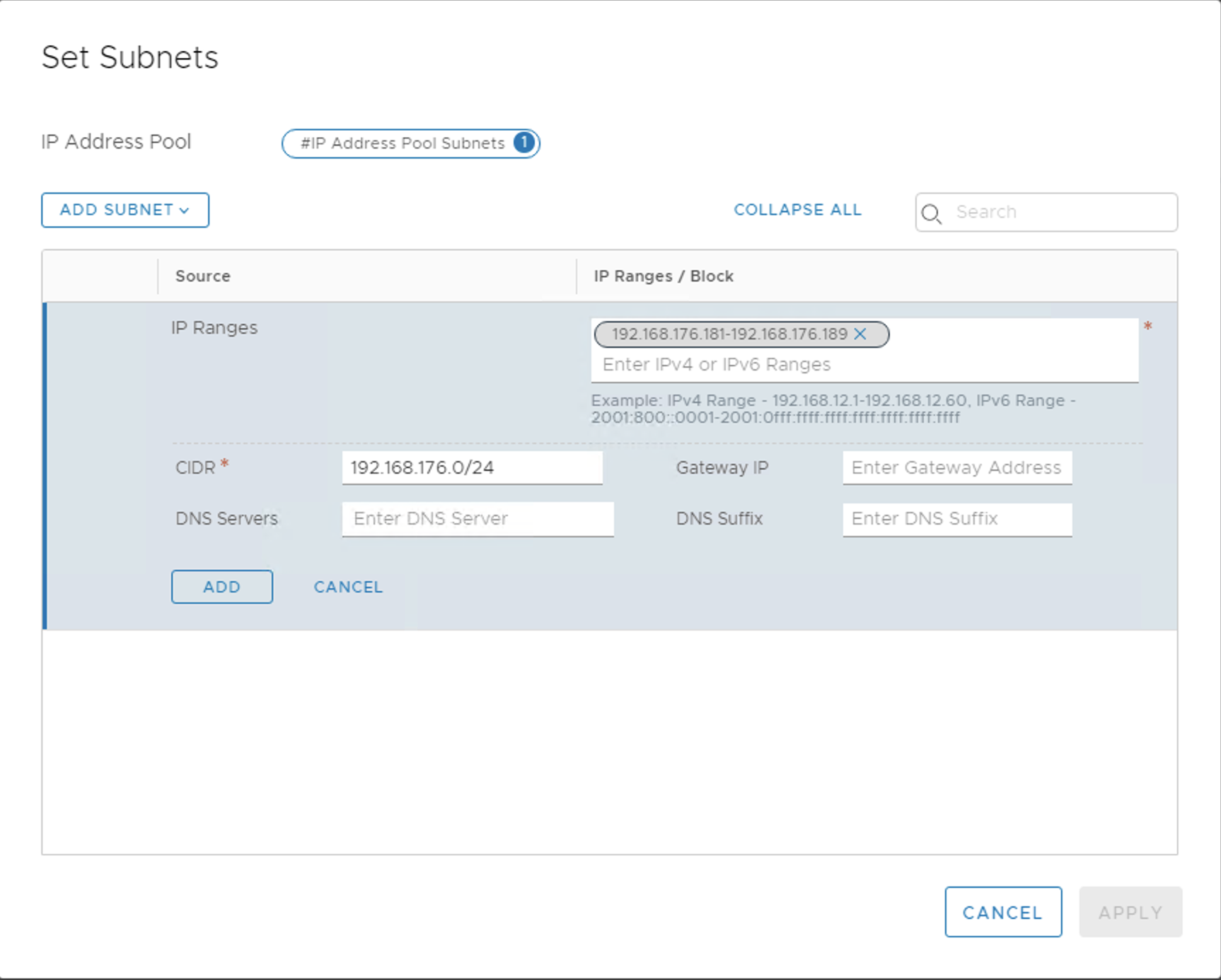
In one of the future steps we’ll need to choose an existing IP Address Pool or DHCP. I prefer to use a pool, so we are going to create one now. Navigate to Networking at the top and IP Address Pool on the left side. Click add IP Address Pool, type in a name and then click SET to configure the IPs.
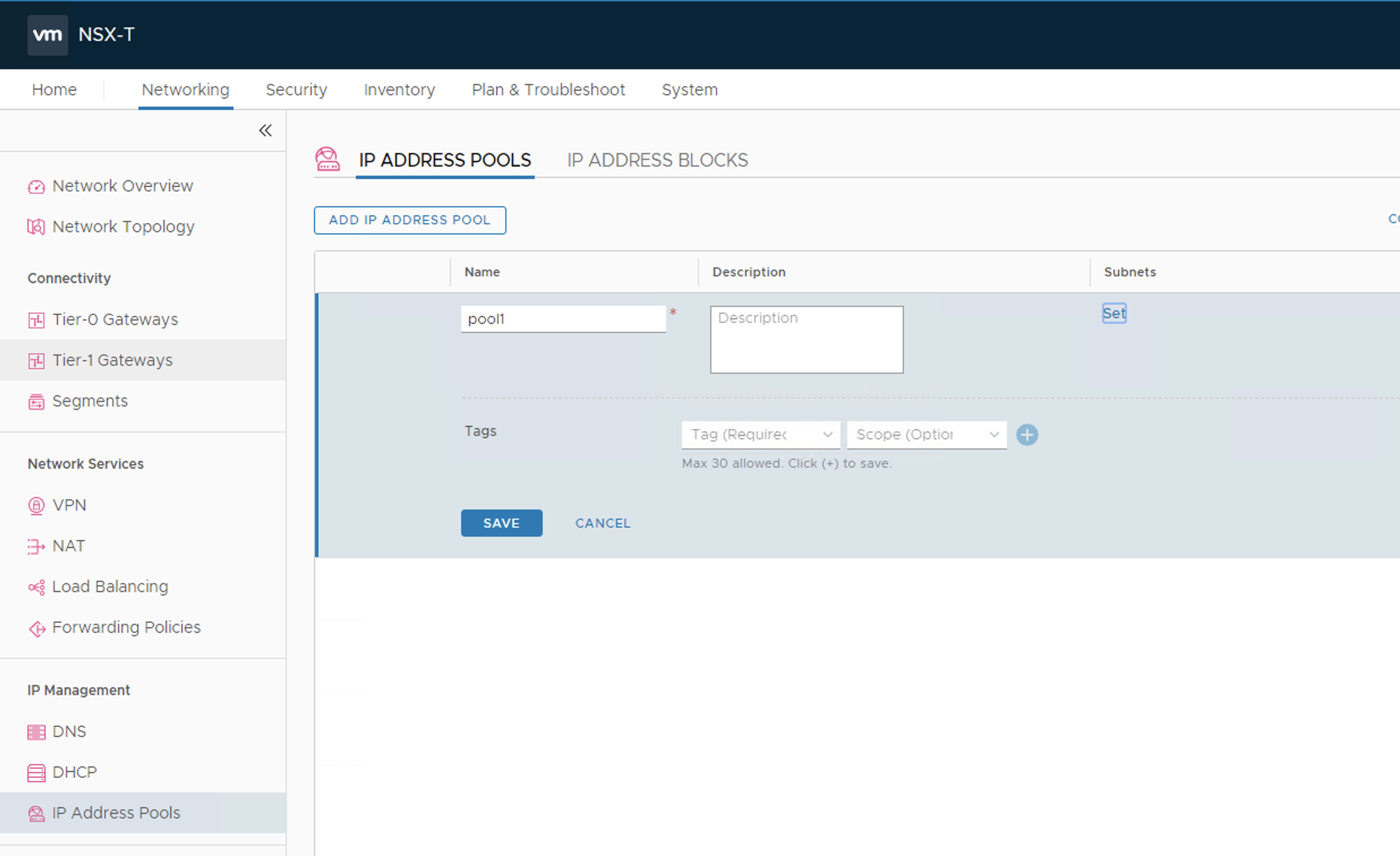
You can either add a subnet or IP range. In this example I’m going to add a range that is available. Type the range, and then click on the pop up that shows up below it to add it. Then click add and then Apply and then save again on the next screen to complete the process.
Create Profiles
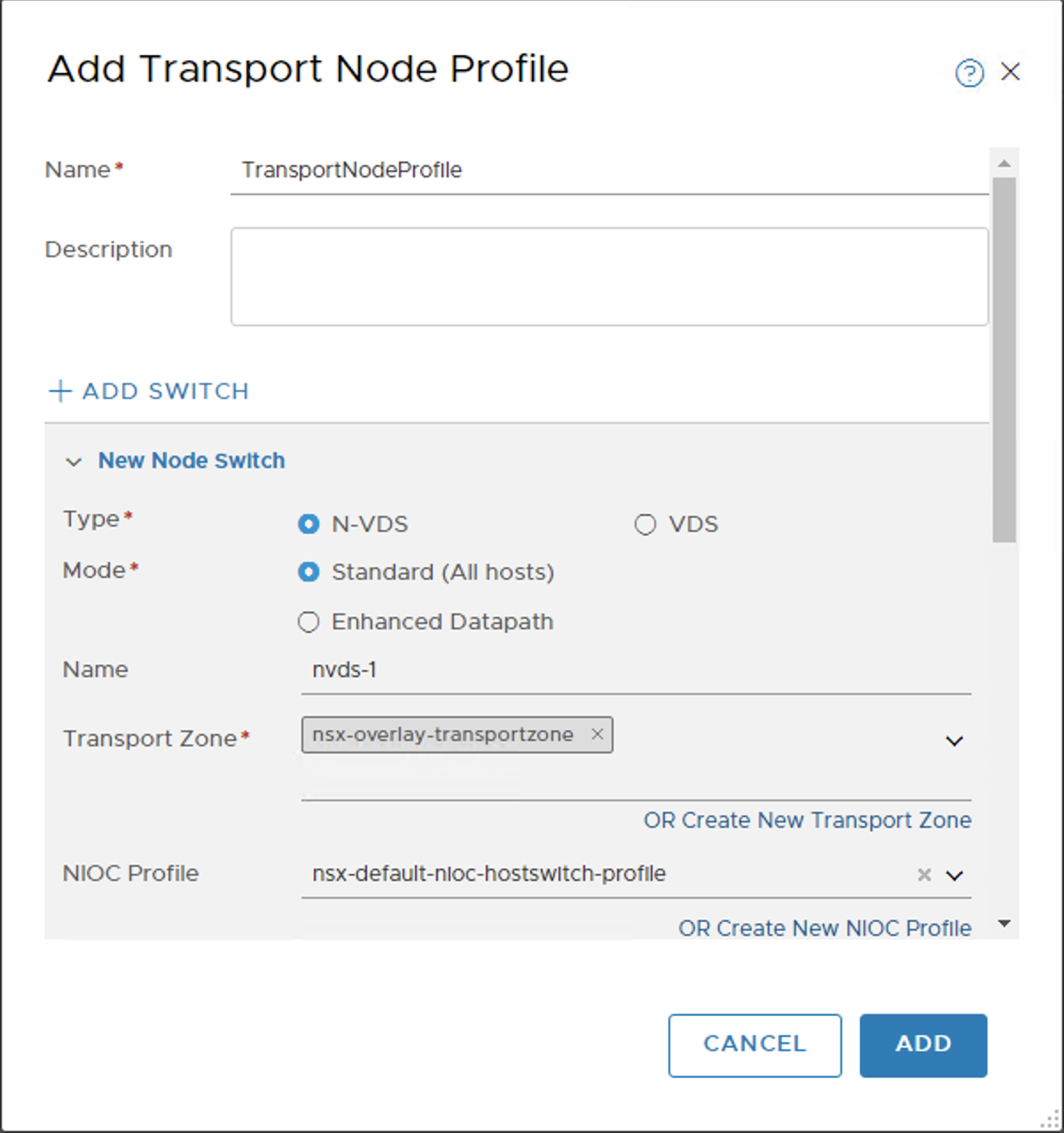
When we are deploying and configuring nodes, we will need some profiles to be in place. Navigate to System | Fabric | Profiles and then Transport Node Profiles. Click Add. Name the profile and for our config, we are going to create two NVDS switches. Some settings aren’t required, but we will still set a default. The first one will be:
name: nvds-1
Transport Zone: nsx-overlay
NIOC Profile: nsx-default-nioc-hostswitch-profile
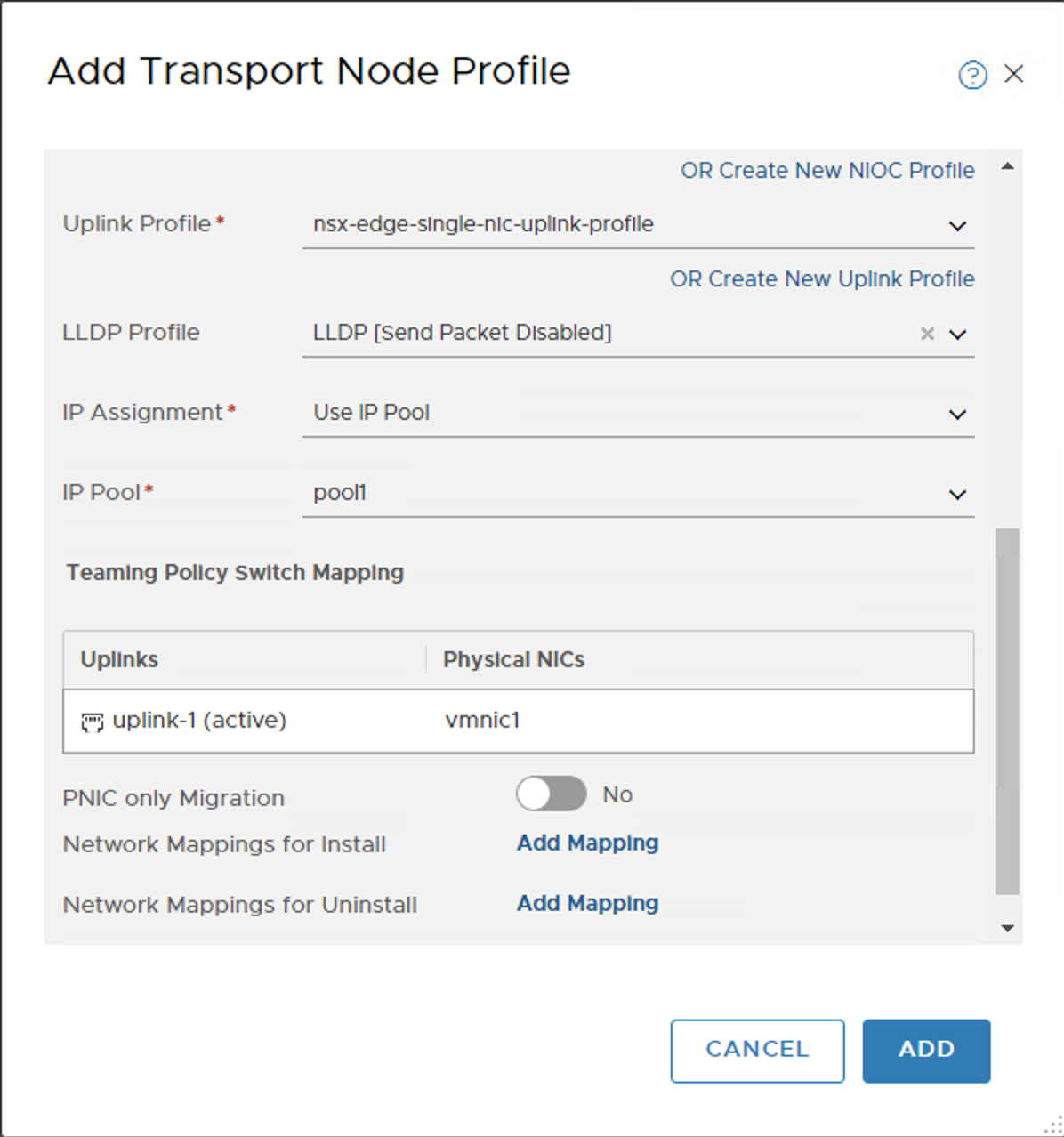
Uplink Profile: nsx-edge-single-nic-uplink-profile
LLDP Profile: LLDP [Send Packet Disabled]
IP Assignment: Use IP Pool
IP Pool: pool1 (the one we created in the previous step.)
Uplink Mapping: edit uplink-1 and type in the name of the esxi physical nic, in my case vmnic1
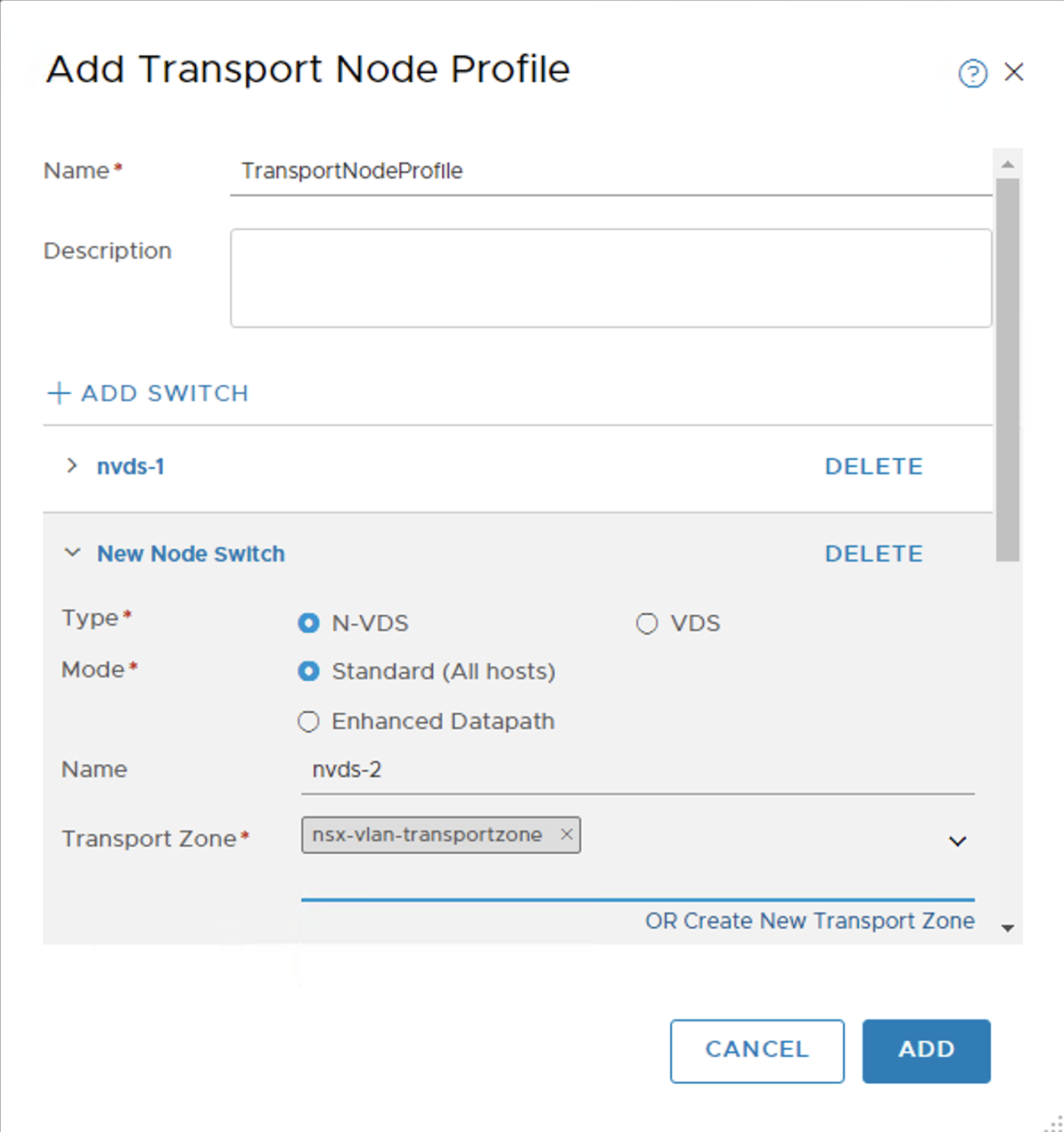
When you are done, scroll to the top and click Add Switch. In here we are going to call this switch nvds-2 and add the transport zone as nsx-vlan-transportzone. All other settings will be the same, but this one will have the uplink mapping be vmnic2.
Configure the vCenter Cluster
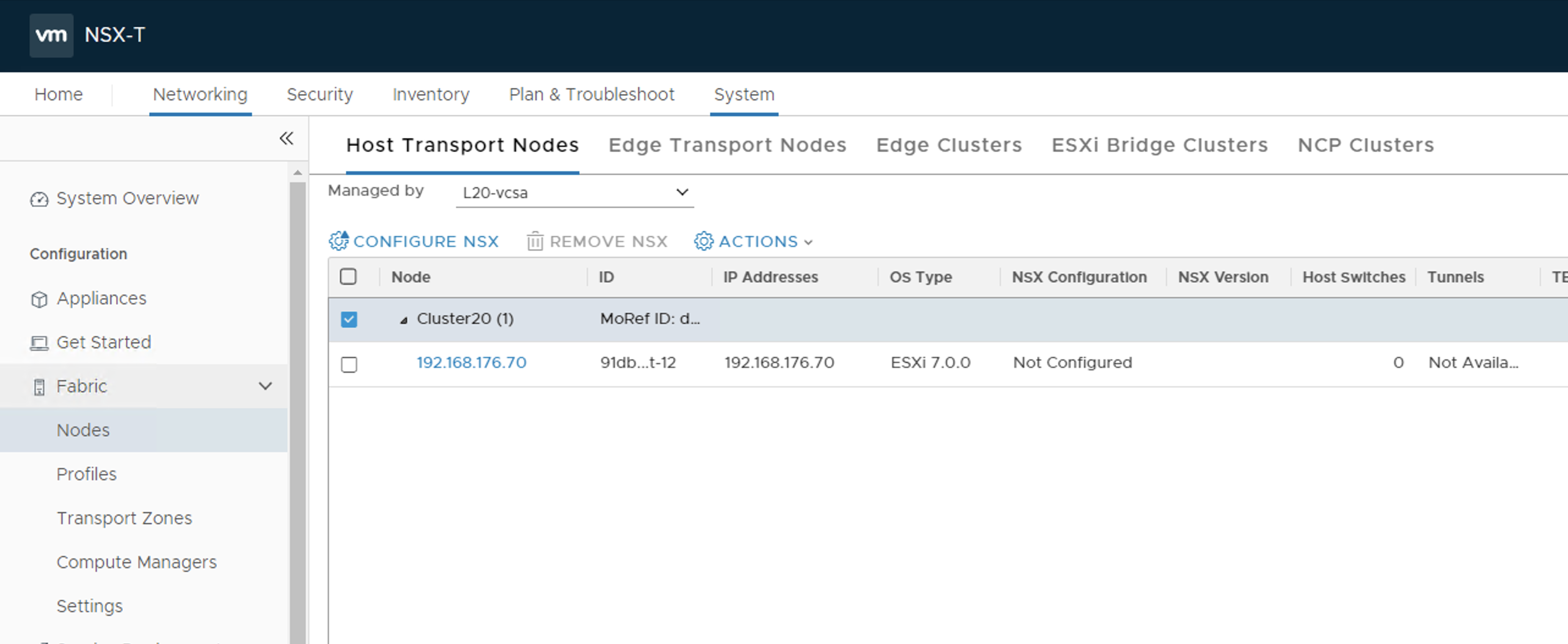
With the profile created, we can now configure the cluster in vCenter. Under System | Fabric | Nodes, click on Host Transport Nodes. Just above the Host Transport Nodes tab change the Managed by drop down to be vCenter, in this example L20-vcsa. Click the check box next to the cluster you want to configure for NSX and then click Configure NSX. In the box that opens up, select the Transport Node Profile we created in the previous step.
Deploy an Edge Transport Nodes
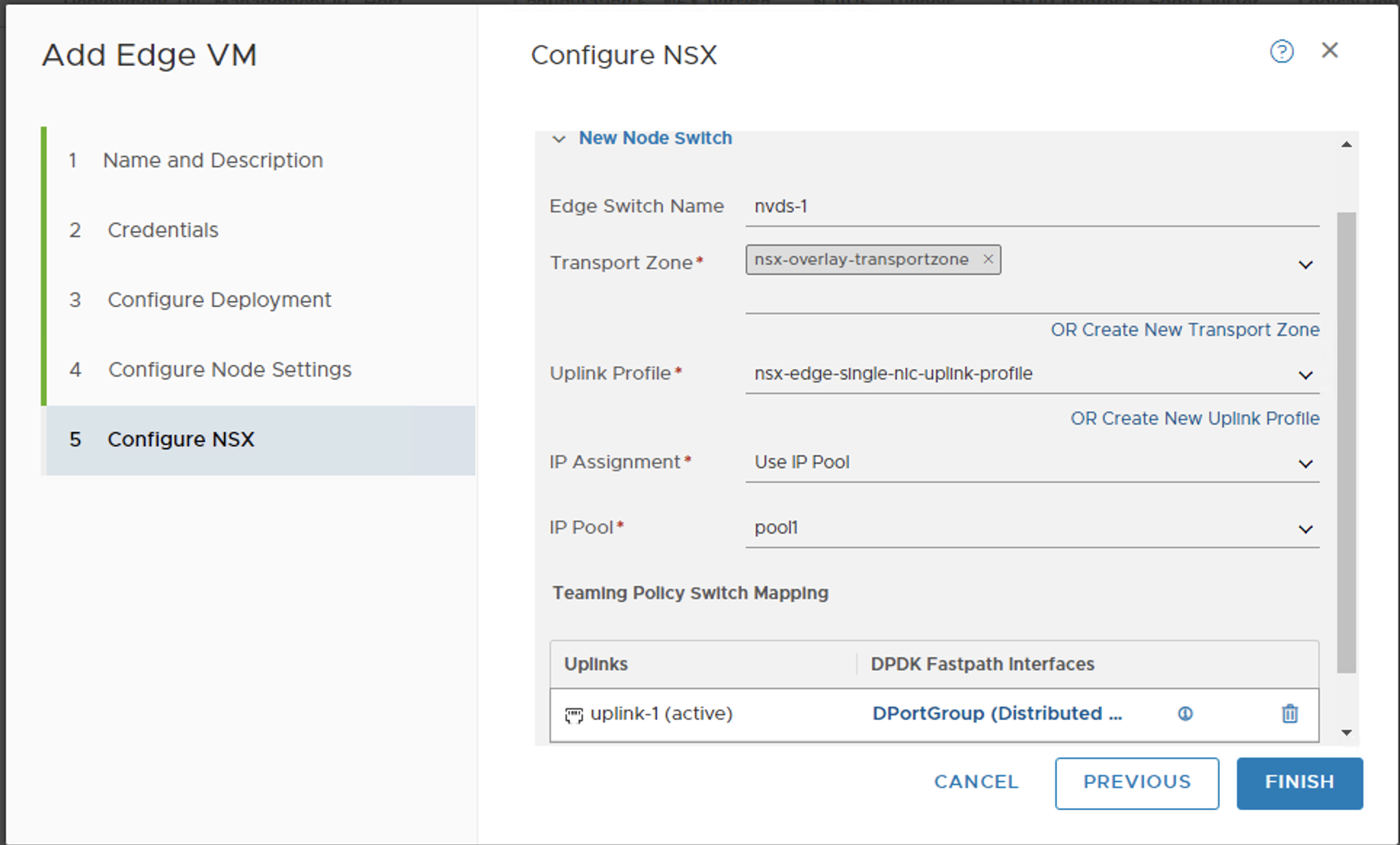
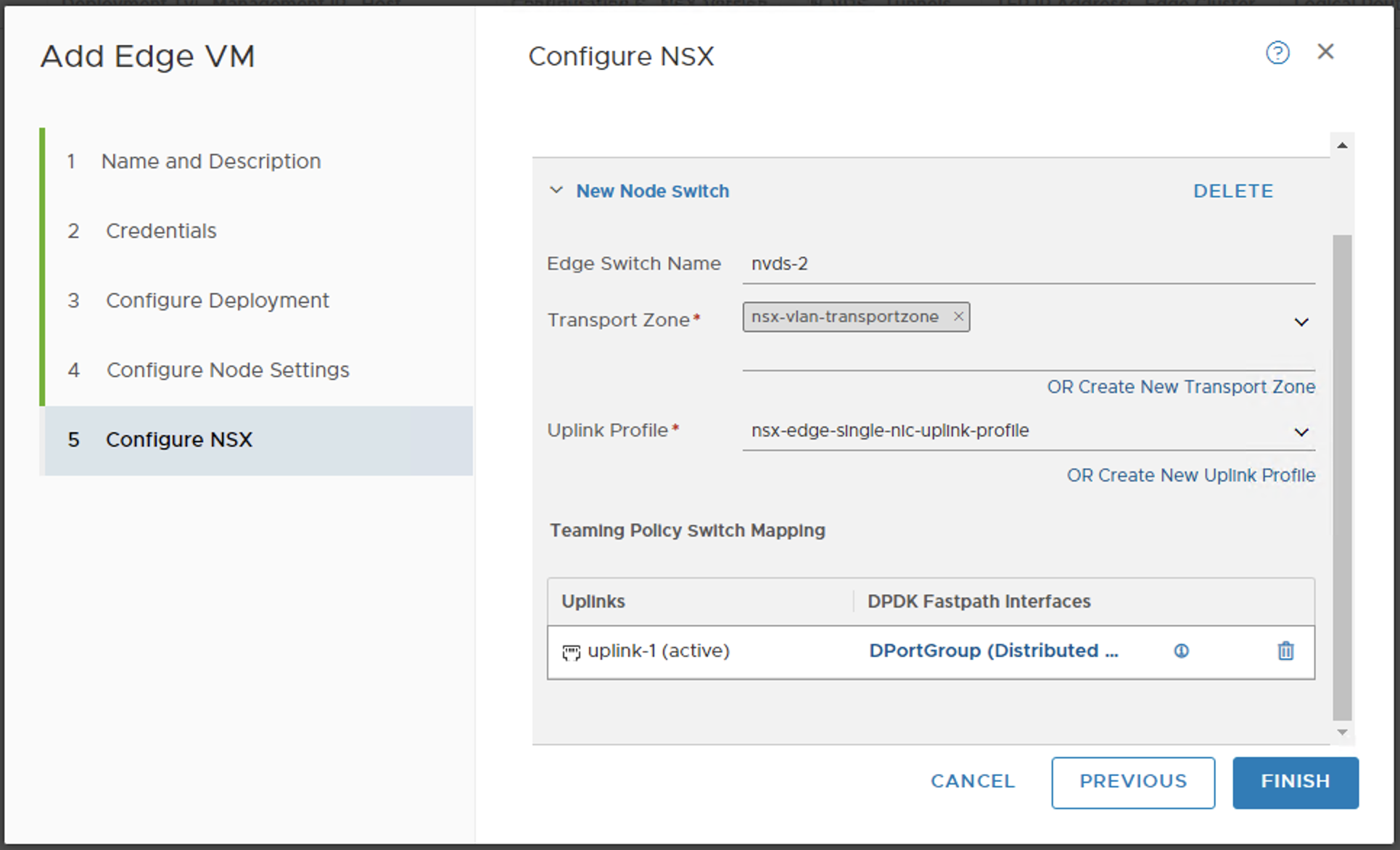
Now that the cluster is configured and ready we will deploy an Edge Transport Node. Go to the tab with that name and click Add Edge VM. We will walk through a wizard to name the edge, select the size, etc. When you get to the nvds section, we will mirror the configuration in the profile previously created. nvds-1 will map to the overlay transport zone and nvds-2 will map to the vlan transport zone. After we deploy this, it will take a few minutes to deploy and register. We can watch the vCenter tasks to see the OVA deploy and in the NSX Console, we want to verify the Configuration State registers as Success.
Create an Edge Cluster
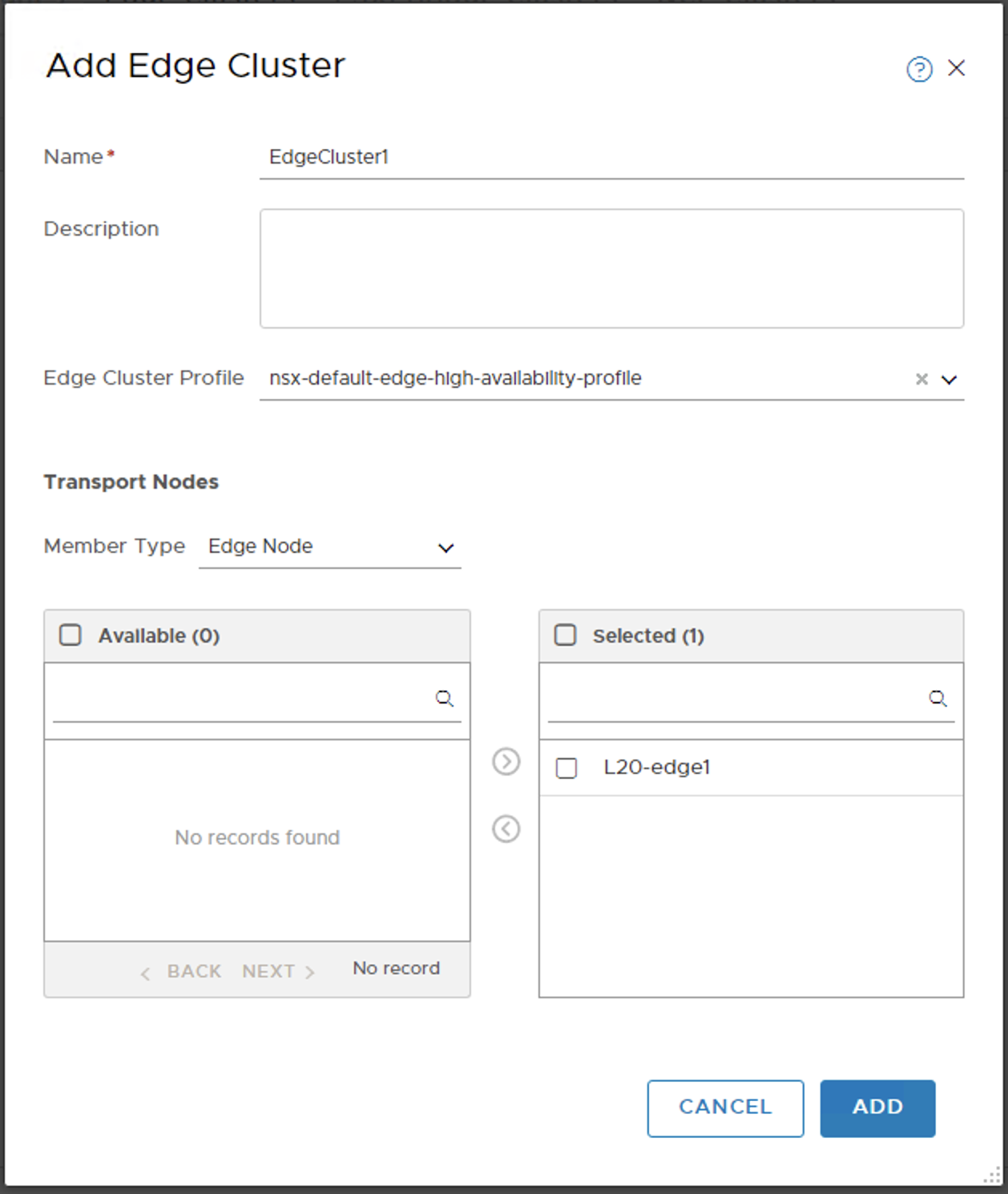
Some featuers will require an Edge Cluster. To prepare for a future step, we will create one now. Go to the tab for Edge Clusters, click Add, type in a name, such as EdgeCluster1. In the bottom section, select the Edge Node we deployed and click the arrows to add it to the cluster. Click Add to finish.
Deploy a T1 Gateway
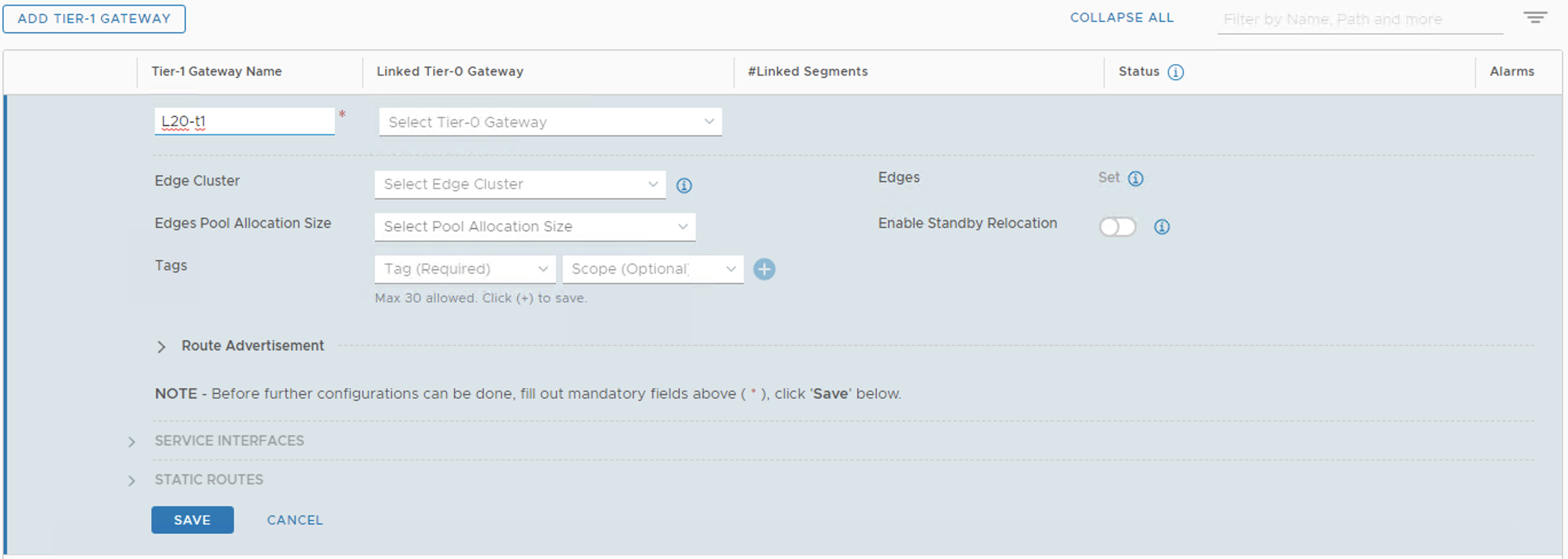
To be able to route between segments we create we will need a T1 Gateway. Once this is created segments can be added to it in order to be able to route between. Got to Networking and then Tier-1 Gateways. Click Add Tier-1 Gateway, give it a name and click save.
Create some segments
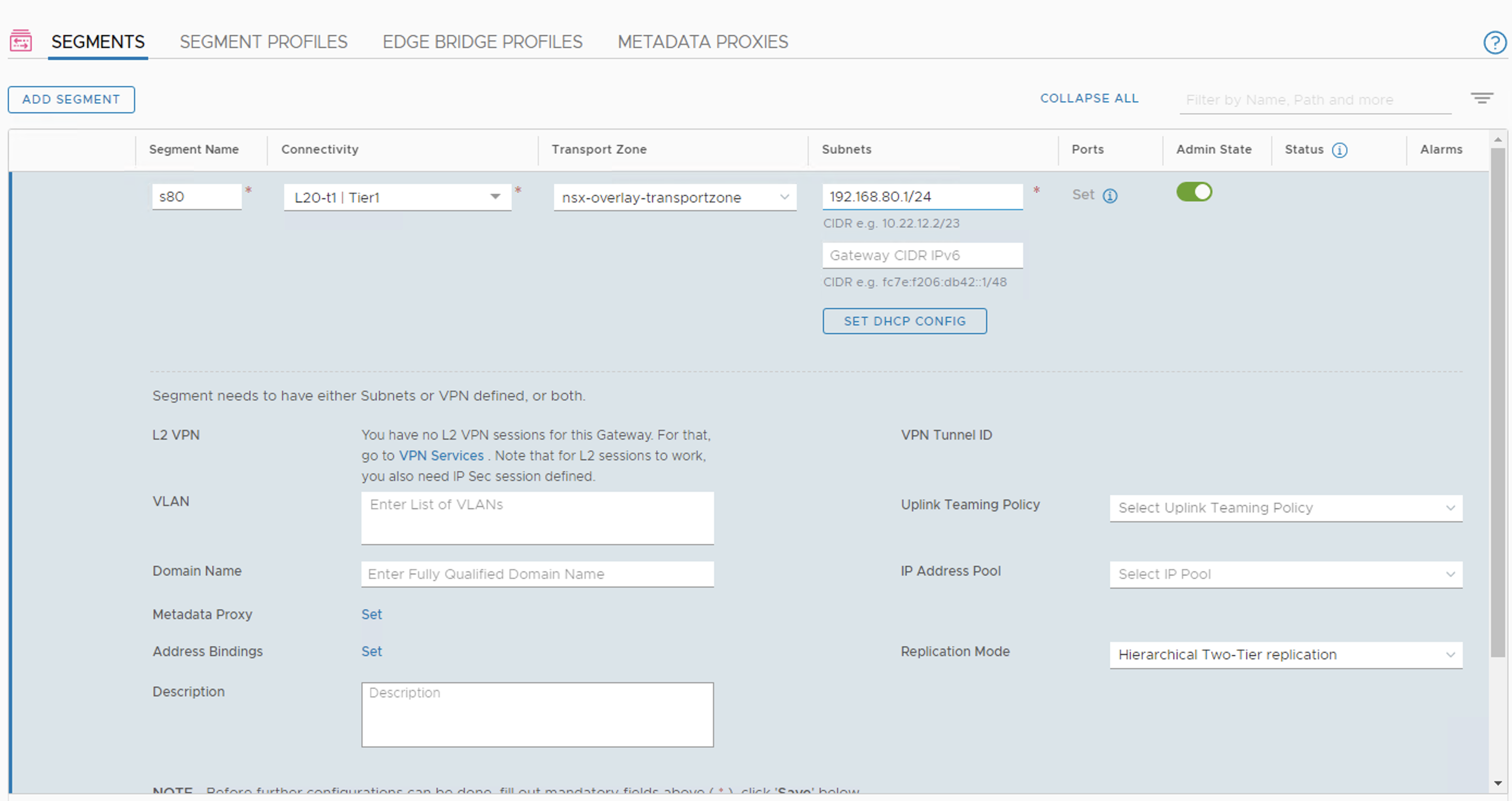
Now lets create some network segments for our VMs to connect to. Under the Networking tab go to Segments and click add. The first segment we will add will be s80 with the following info: Name: s80 Connectivity: L20-t1 (Tier-1 gateway we just created) Transport Zone: nsx-overlay-transportzone Subnet: 192.168.80.1/24
In my example, I’ll repeate this for another segment called s176. This will eventually bridge to my local ethernet IP range so I’ll give it an IP of 192.168.176.2/24.
Test setup
I always like testing to verify the setup works as expected. So I will move one VM over to the s80 segment, give it an IP address on that range and verify I can ping the gateway, in this case 192.168.80.1. Second I will move a VM to the s176 segment, make sure it has an IP and can ping the gateway for the segment, which is 192.168.176.2/24.
You will notice I can not ping something on the physical network yet. We will do that in another post.
Next Steps
There are a few areas we can look into next. First I’ll setup a bridge between segment s176 and the physical network. Then we will look into some security configurations.