NSX 3 Bridge Configuration
To connect your NSX install to your physical network and allow the existing IP space to cross from physical to the virtual world.
Pre-requisites
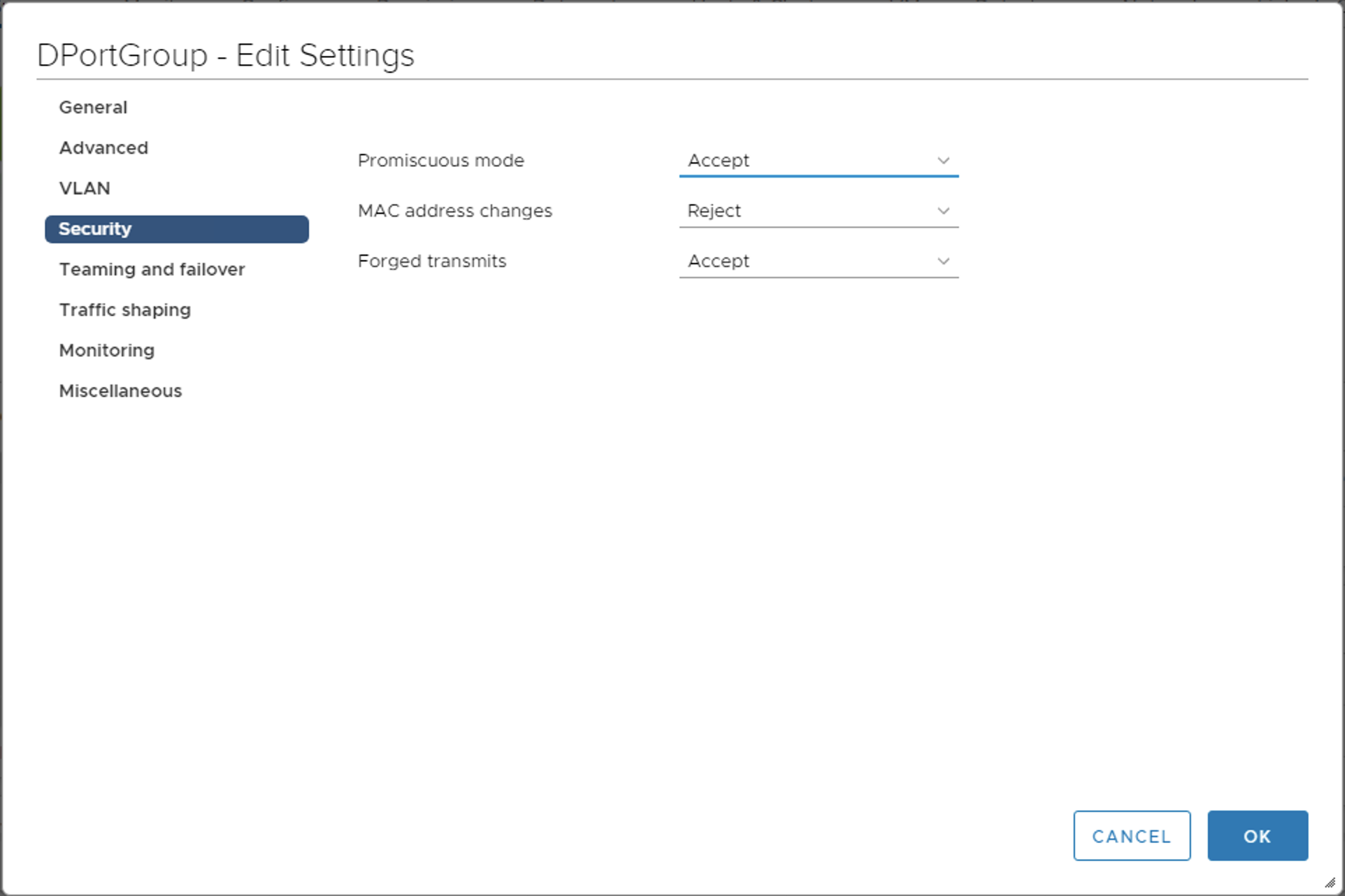
In order for the setup to work, the virtual switch, either standard switch or distributed switch, will need to have two configuration setting in place. On the port gropu that you will be connecting the edge vm to ensure the following two settings are configured:
Promiscuous Mode: Allow
Forged Transmit: Allow
Create an Edge Bridge Profile
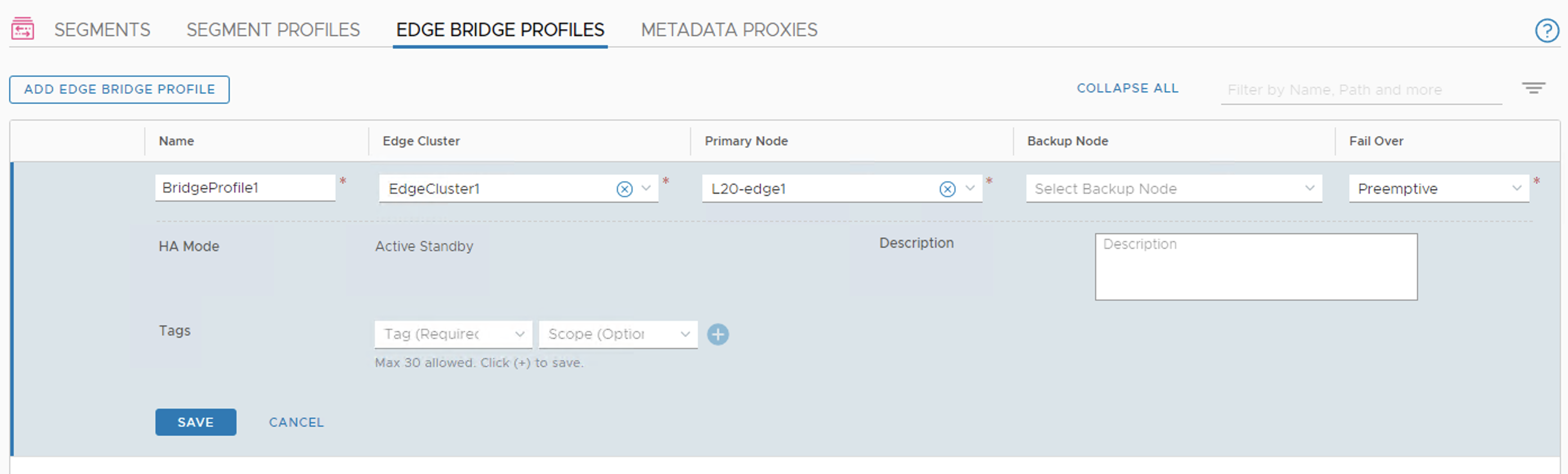
Under Networking | Segments go to Edge Bridge Profiles and click Add Edge Bridge Profile. Give it a name, select an edge cluster and if the primary node didn’t pre-populate, select the node. Click Save when done.
Create a VLAN Segment
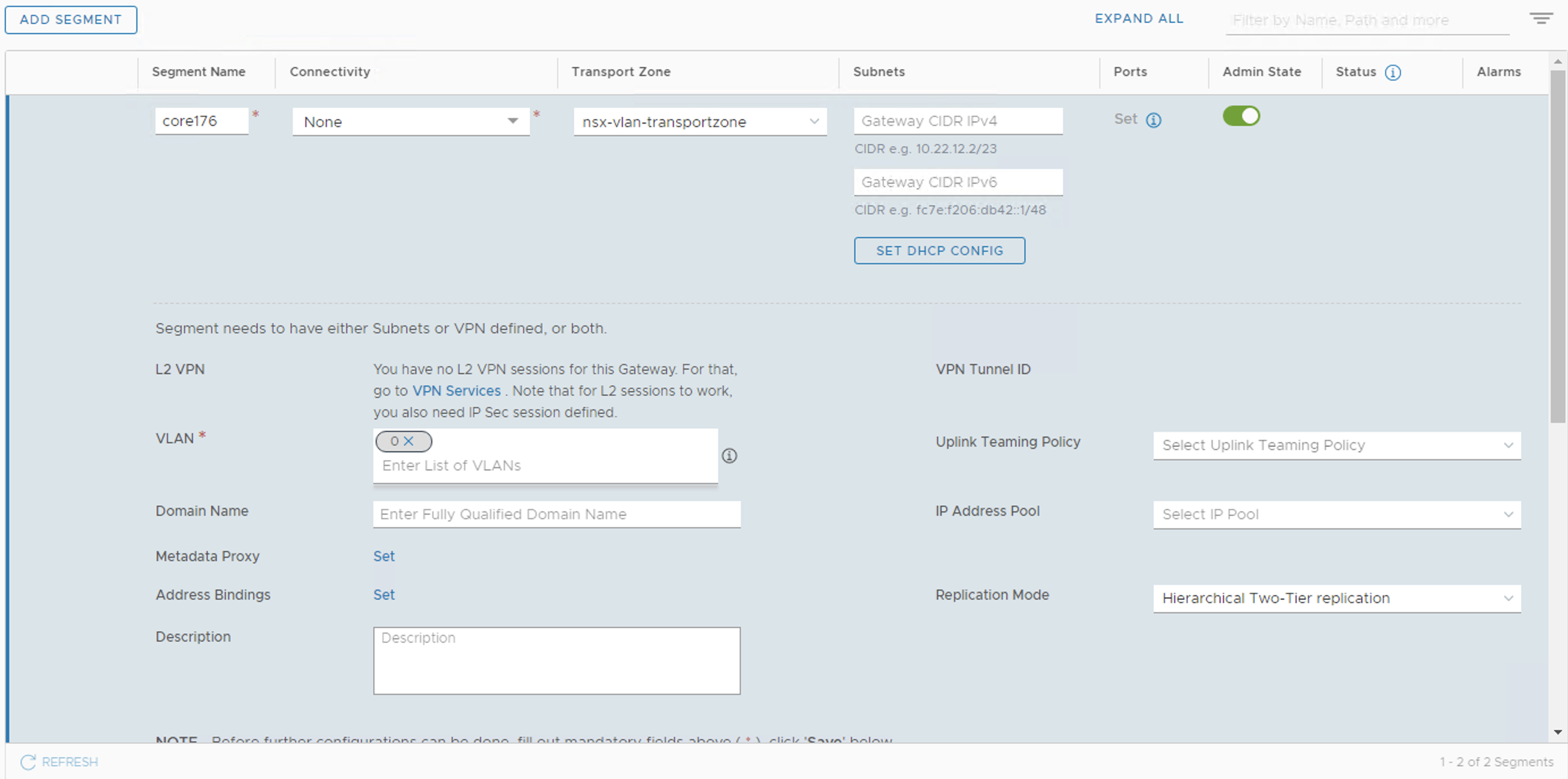
We will create a Segment that is part of a VLAN transport zone that will then be bridged to another segment that is part of an overlay. Go to Networking | Segments and add segment. For our example we will use the follwing info:
Name: core176
Transport Zone: nsx-vlan-transportzone
VLAN: 0
Configure the Bridge
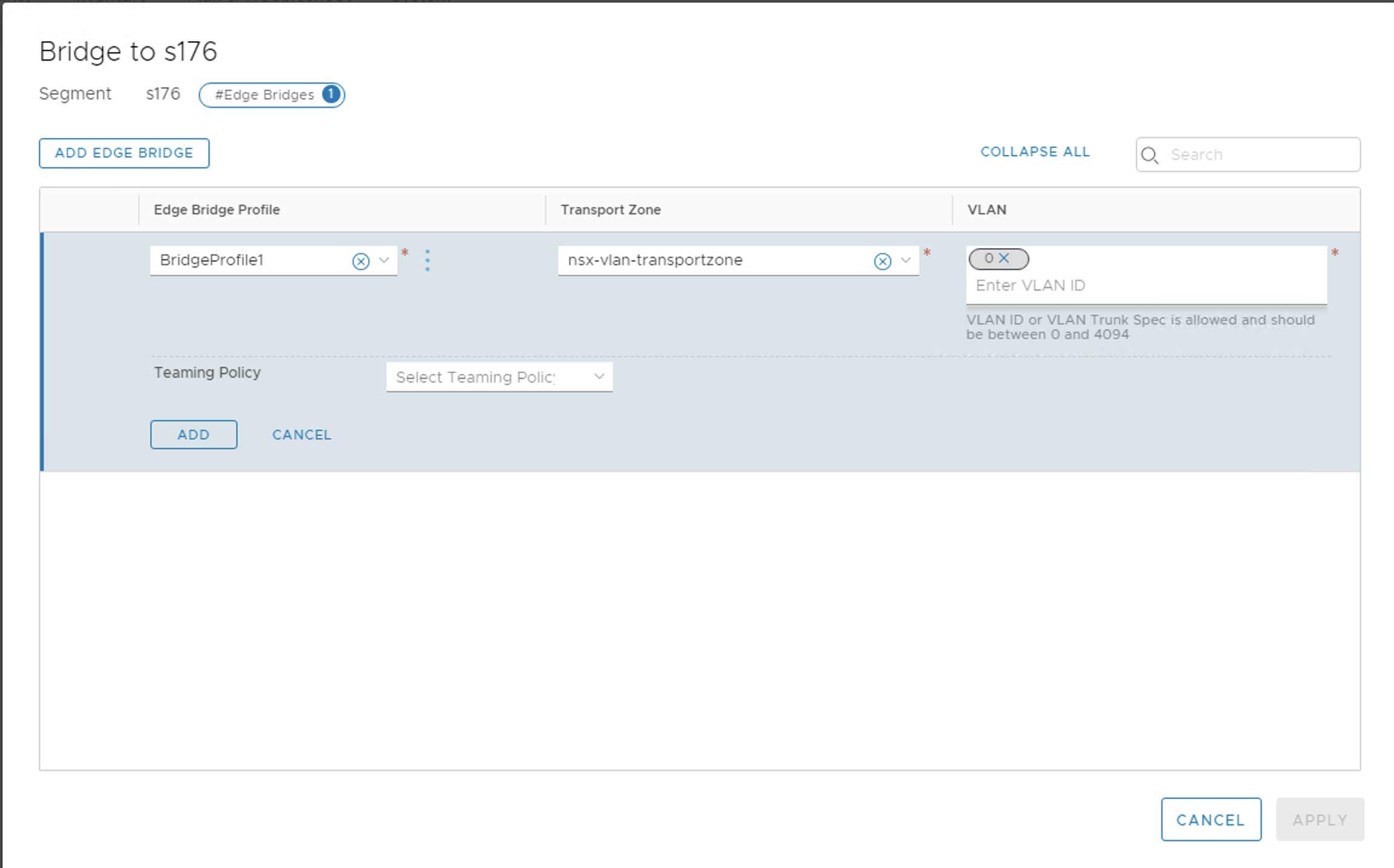
To configure the Bridge, we will go to the segment we want the VLAN backed segment to connect to. In our example this is s176. \ Edit this segment and about half way down the left side of the settings click on Set next to Edge Bridges. Choose the Bridge Profile and set the transport zone to nsx-vlan-transportzone and set the VLAN to 0.
Test
If you go back to the test VM that you moved over to the s176 segment, it should be able to ping the VM on the s80 segment, as well as the physical gateway on the ethernet network.